Task 5: Update the Existing CML Lab and Add the Deployment Job
Introduction
The validation and packaging workflow is now in place. In this task, you will connect that hosted pipeline to an existing CML lab and teach the workflow how to apply the router configurations from the repository to the routers already present in that lab. Instead of creating a new lab, the deployment job will find the existing nodes, stop and wipe the lab, update the node configurations through the API, and then start the lab so the new startup configurations can take effect.
Goal
Update an existing CML lab by patching the router configurations through the API and then starting the lab from GitHub Actions.
Task Dependencies
Complete Task 4 before starting this task.
Diagram
flowchart LR
    A[Packaged configs artifact] --> B[Authenticate to CML]
    B --> C[Find existing nodes in lab]
    C --> D[Stop lab]
    D --> E[Wipe lab state]
    E --> F[Patch R1 R2 R3 configs]
    F --> G[Start lab]
Steps
Step 1: Open the CML interface
In the Cisco Live Lab Portal browser tab, retrieve the connection details for the CML lab.
Click Job Aids:
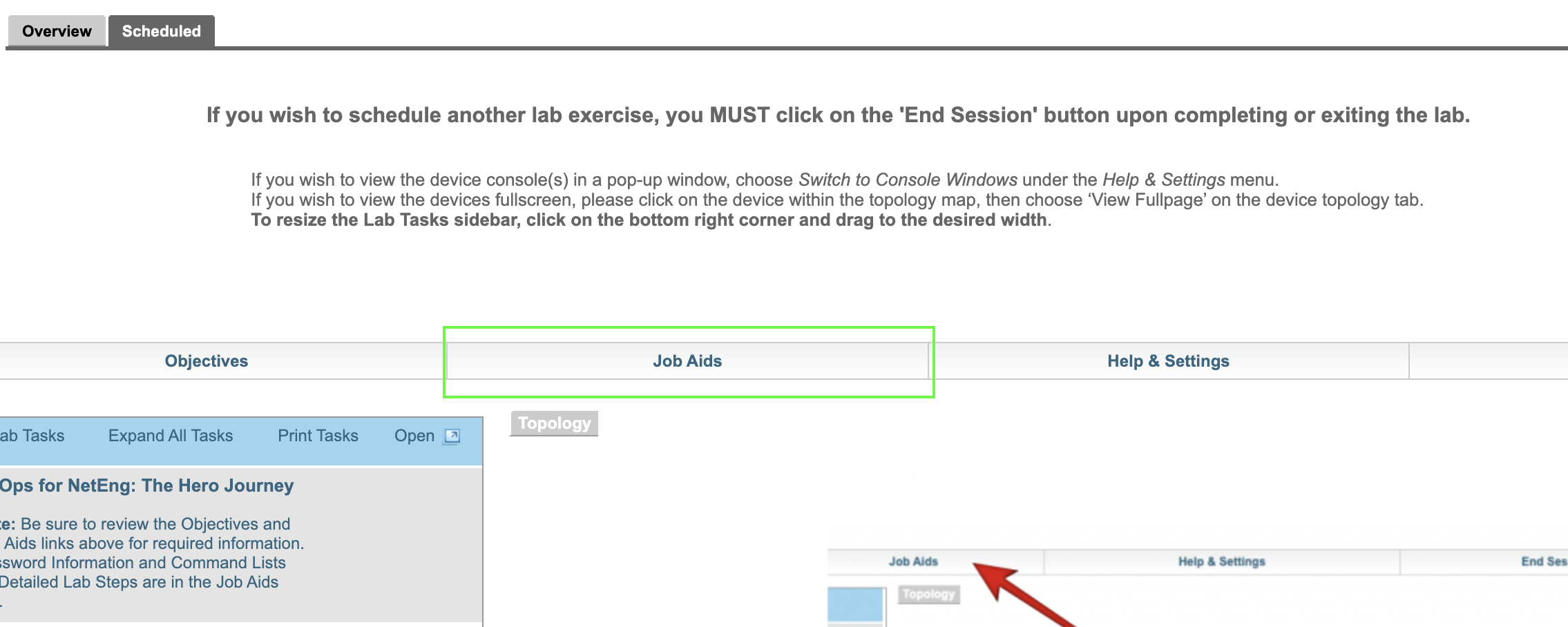
A new browser window will open with the connection details, similar to the below
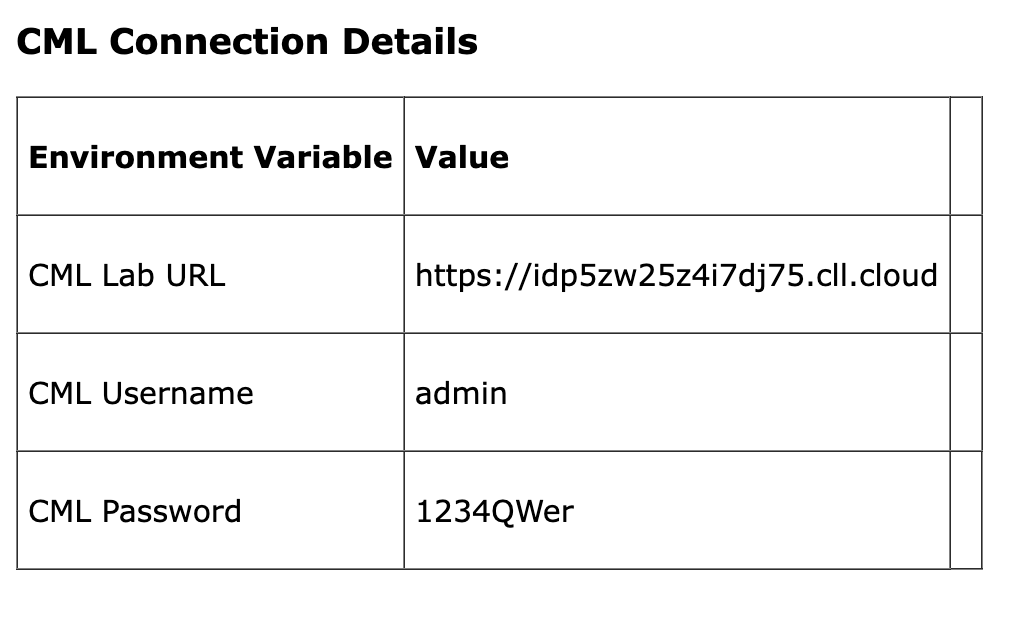
Copy the CML Lab URL, open a new browser tab, paste the url in the web address bar CML to get to the CML application. This brings you to the CML environment that contains the existing lab for this task. You will also use this URL later to create a secret in GitHub Actions to connect to this environment.
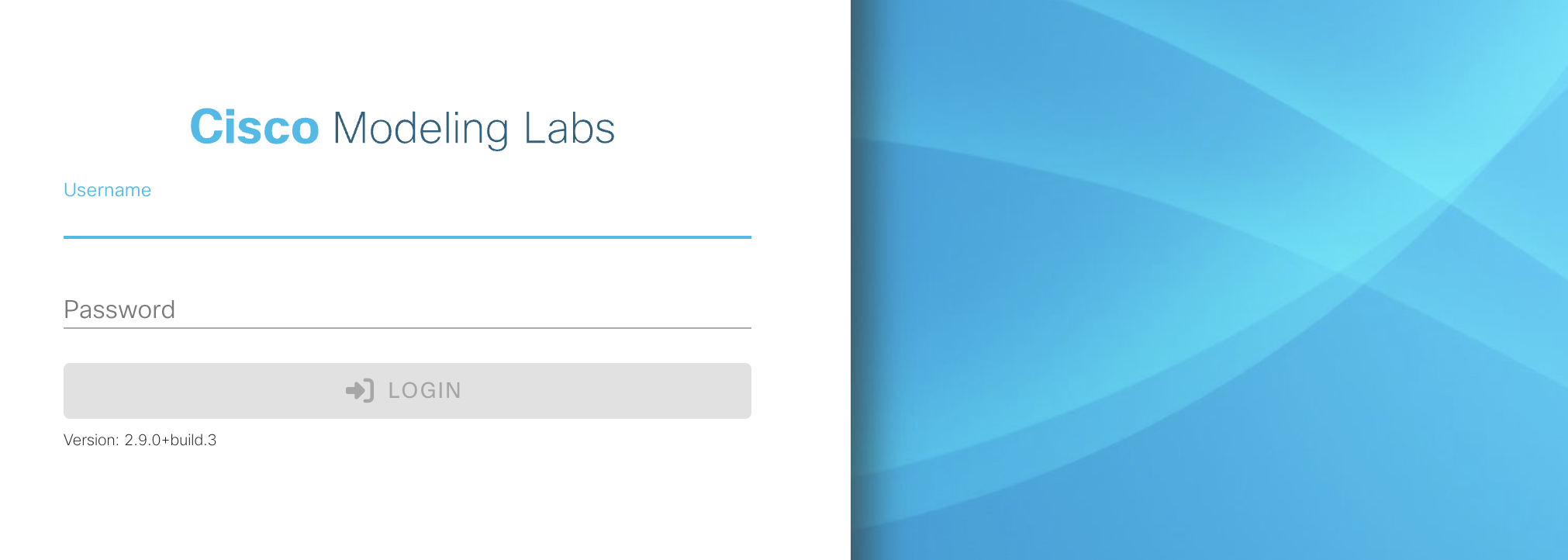
Step 2: Sign in to CML
Sign in with the following credentials:
- Username:
admin - Password:
1234QWer
These credentials give you access to the CML lab environment used for this deployment task.
Step 3: Open the existing CML lab
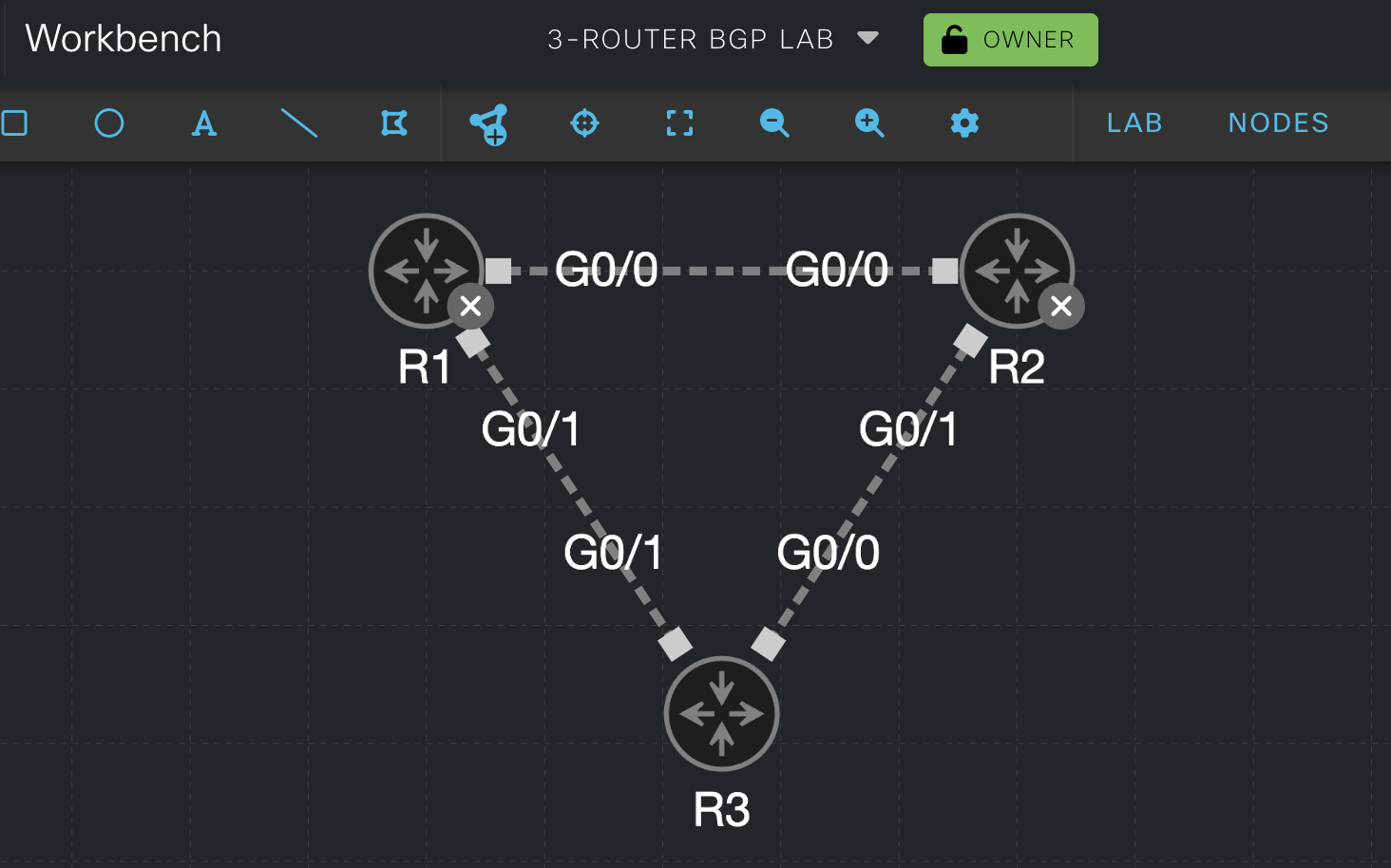
In the CML interface, open the lab named 3-Router BGP Lab.
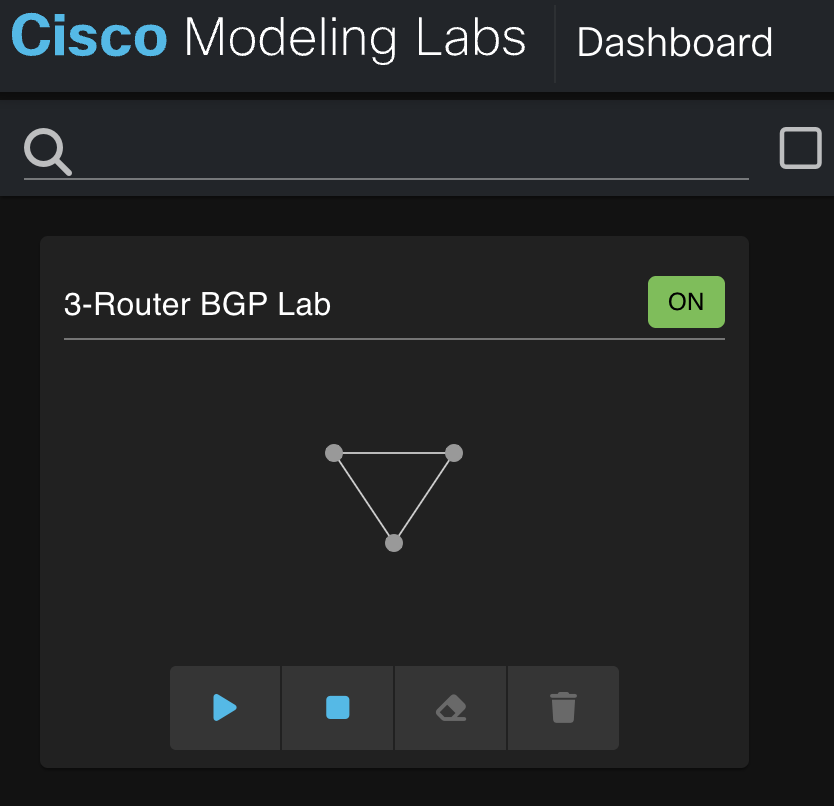
This gives the deployment stage a known target. The workflow in this task is designed to act on an existing lab, so it is important to begin by confirming that the lab already exists and is the one you intend to automate.
Step 4: Confirm the node labels
Verify that 3-Router BGP Lab contains the routers labeled R1, R2, and R3.
The deployment job will use these labels to match each repository configuration file to the correct node in CML. If the labels do not match, the workflow will not know which router should receive which configuration.
Step 5: Verify the router configurations are empty
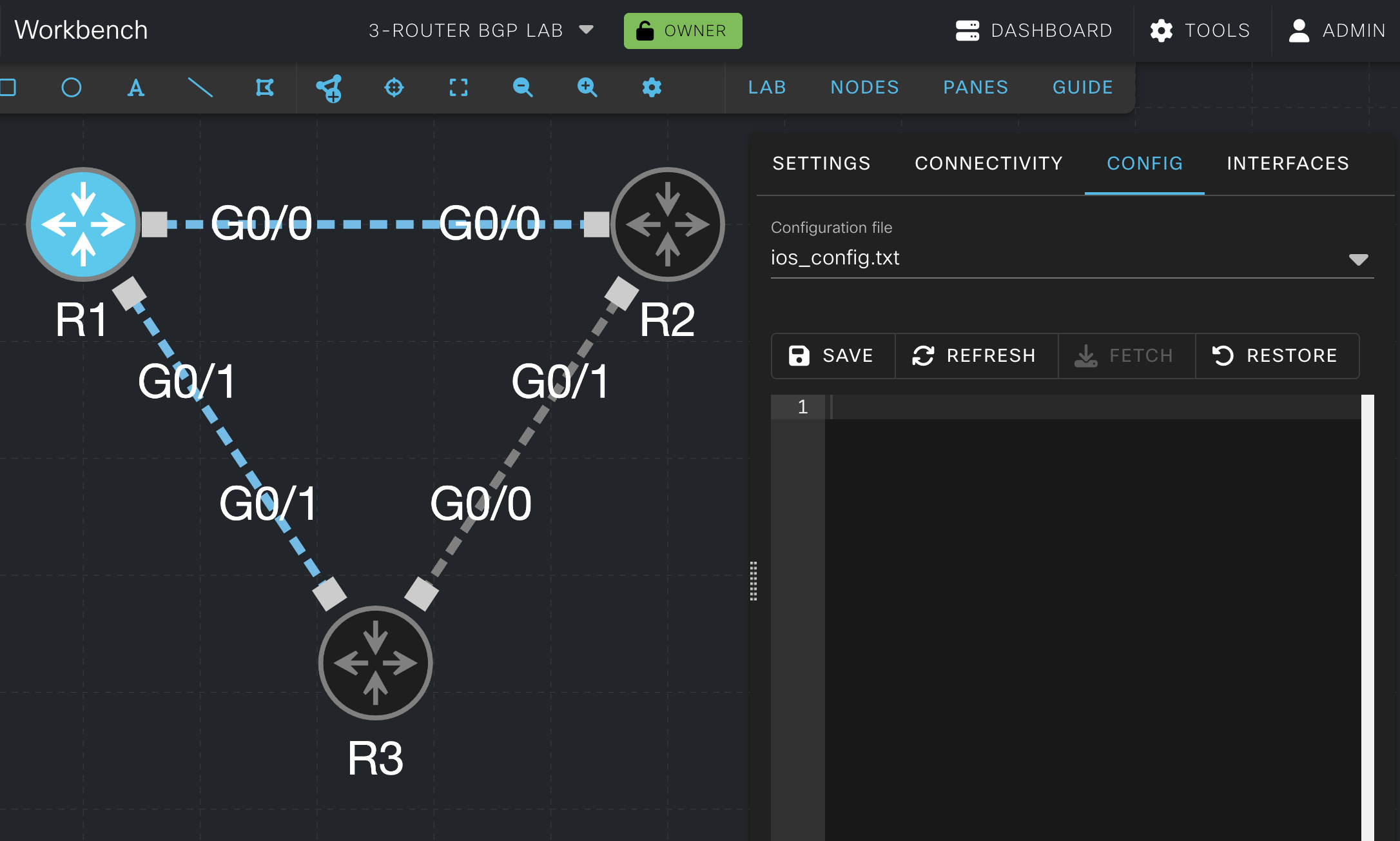
In the CML lab canvas, check the current configuration for each router:
- Click the
R1router component. - Click
Config. - Confirm the configuration field is empty.
- Repeat the same check for
R2andR3.
This confirms the lab starts without existing startup configuration on the routers. Later in this task, the deployment workflow will populate these configuration fields from the files in the repository.
Step 6: Record the lab ID
Capture the lab ID for the existing lab from the CML interface. With 3-Router BGP Lab open, look at the browser address bar and copy the lab ID from the URL. It is the unique value shown in the lab URL after /labs/.
The lab ID is the unique identifier the API uses to act on a particular lab. The workflow needs this value so it can query the lab, stop it, wipe it, and start it again.

Step 7: Add the CML URL secret
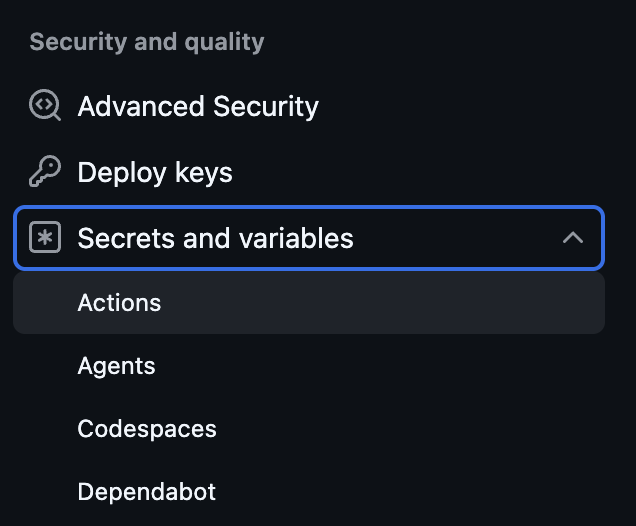
In the GitHub repository, click Settings in the top menu

Find and Click Secrets and variables in the left menu under Security and quality, the proceed to click Actions in the drop down menu
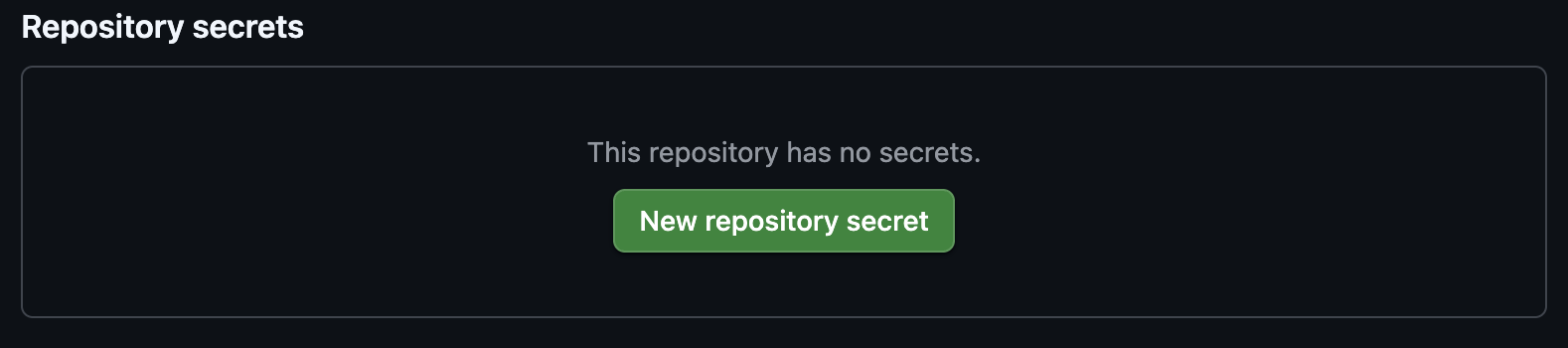
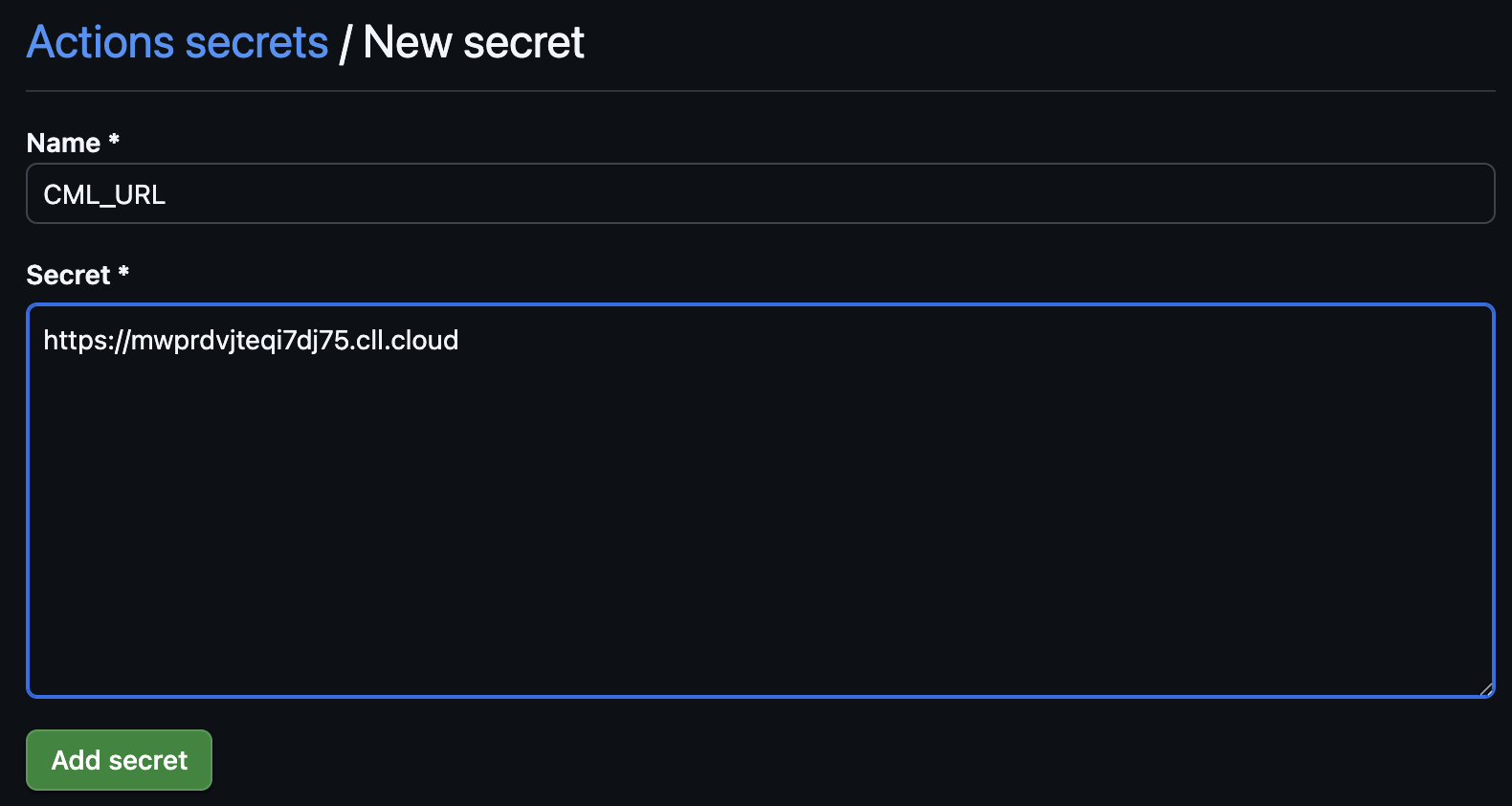
Under Repository secrets, create a secret named CML_URL with the value you received from the CML Connection Details in Step 1.
This secret stores the base address of the CML instance. The deployment job uses it as the root URL for every API call.

Step 8: Add the CML username secret
Create another repository secret named CML_USERNAME with this value:
admin
This stores the username used to authenticate to the CML API. It should match the account that has permission to work with the target lab.
Step 9: Add the CML password secret
Create a repository secret named CML_PASSWORD with this value:
1234QWer
This stores the password for the CML account. Keeping it in GitHub Actions secrets allows the workflow to use the credential without placing it in the repository.
Step 10: Add the lab ID secret
Create a repository secret named CML_LAB_ID. The value is the id that you captured from the CML web address in Step 6.
This stores the identifier of the existing lab that the workflow will update. Using a secret keeps the workflow portable because the same YAML can target a different lab simply by changing the secret value.
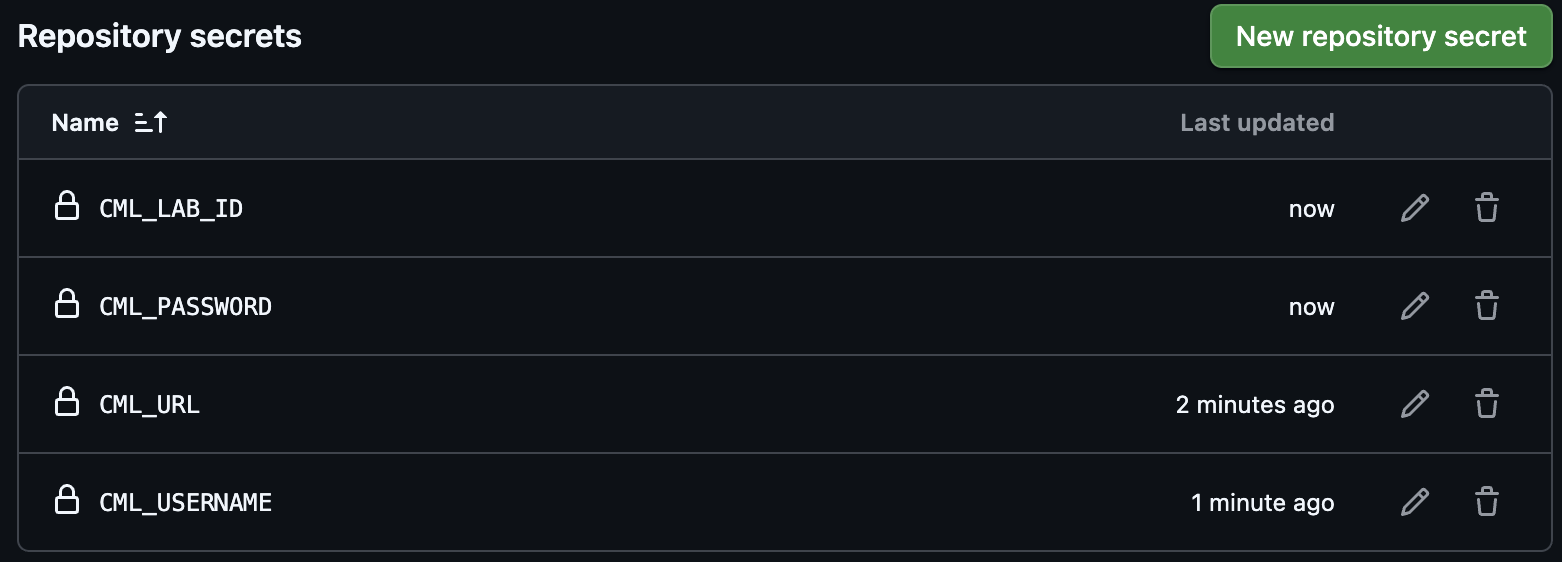
Step 11: Review the full secret set
At this point, the GitHub repository should contain these Actions secrets:
CML_URLCML_USERNAMECML_PASSWORDCML_LAB_ID
Seeing the full secret set together makes it easier to confirm that the workflow has everything it needs to authenticate and act on the correct lab.
Step 12: Add the shared environment section
Return to Visual Studio Code and add an env section near the top of .github/workflows/gitops-pipeline.yml. Place it after the workflow triggers and before jobs:
on:
  push:
    branches:
      - main
  workflow_dispatch:

env:

jobs:
The env section stores values that multiple jobs or steps can reuse. In this workflow, it gives the deployment job one consistent place to read the CML connection details.
Step 13: Add the CML URL variable
Under env:, add:
env:
  CML_URL: ${{ secrets.CML_URL }}
This makes the CML server address available to the jobs in the workflow.
Step 14: Add the CML username variable
Add:
CML_USERNAME: ${{ secrets.CML_USERNAME }}
This makes the CML username available at runtime so the workflow can request an authentication token.
Step 15: Add the CML password variable
Add:
CML_PASSWORD: ${{ secrets.CML_PASSWORD }}
This completes the credential pair used by the authentication request.
Step 16: Add the lab ID variable
Add:
CML_LAB_ID: ${{ secrets.CML_LAB_ID }}
This gives the deployment job the lab ID it needs for all later API calls.
Step 17: Review the complete environment section
At this point, the environment section should look like this:
env:
  CML_URL: ${{ secrets.CML_URL }}
  CML_USERNAME: ${{ secrets.CML_USERNAME }}
  CML_PASSWORD: ${{ secrets.CML_PASSWORD }}
  CML_LAB_ID: ${{ secrets.CML_LAB_ID }}
Seeing the whole section together makes it easier to understand how GitHub Actions receives the values it needs before the deployment job begins.
Step 18: Add the deployment job header
Add the beginning of the deployment job after the package job:
jobs:
  package:
    ...
  deploy:
    needs: package
    runs-on: ubuntu-latest
This creates the third job in the pipeline. The needs: package line ensures deployment only begins after validation and packaging have already succeeded.
Step 19: Start the deployment job steps section
Add the steps container under the deployment job:
  deploy:
    needs: package
    runs-on: ubuntu-latest
    steps:
The steps section marks the point where the runner begins carrying out the deployment process in order.
Step 20: Add the repository checkout step
Add:
  deploy:
    needs: package
    runs-on: ubuntu-latest
    steps:
      - name: Check out repository
        uses: actions/checkout@v4
Each GitHub Actions job starts in a fresh environment, so this step brings the repository content back into the runner.
Step 21: Add the artifact download step
Add:
    steps:
      - name: Check out repository
        uses: actions/checkout@v4
      - name: Download package artifact
        uses: actions/download-artifact@v4
        with:
          name: network-configs
          path: artifacts
This retrieves the packaged artifact produced by the package job. That keeps deployment tied to the exact repository state that already passed validation.
Step 22: Add the artifact extraction step
Add:
      - name: Extract package artifact
        run: tar -xzf artifacts/configs.tar.gz -C .
The artifact is stored as a compressed archive. Extracting it restores the router configuration files so the deployment job can use them.
Step 23: Add the HTTP Request Action note to your workflow
In this deployment job, use the GitHub Marketplace action fjogeleit/http-request-action@v1.16.5 for the API calls.
Using a dedicated HTTP action makes the workflow easier to read because each API interaction is expressed as a named step with a URL, method, headers, and body. That keeps the deployment logic focused on the API workflow instead of shell syntax.
Step 24: Add the jq install step
Add:
      - name: Install jq
        run: sudo apt-get update && sudo apt-get install -y jq
The deployment job will use jq to read JSON responses from the CML API and build JSON payloads for node updates. Installing it here ensures the runner has the parsing tool the later steps depend on.
Step 25: Add the authentication step
Add:
      - name: Authenticate to CML
        id: cml_auth
        uses: fjogeleit/http-request-action@v1.16.5
        with:
          url: '${{ env.CML_URL }}/api/v0/authenticate'
          method: 'POST'
          customHeaders: '{"Content-Type": "application/json"}'
          data: '{"username":"${{ env.CML_USERNAME }}","password":"${{ env.CML_PASSWORD }}"}'
This step sends the workflow credentials to the CML authentication endpoint and stores the returned token in the action output.
The with block provides inputs to the fjogeleit/http-request-action action:
urlis the API endpoint the request will call. It combines theCML_URLenvironment variable with the plain text path/api/v0/authenticate.methodtells the action which HTTP method to use.POSTis used here because the workflow is sending credentials to request a token.customHeadersadds HTTP headers to the request.Content-Type: application/jsontells CML that the request body is JSON.datais the request body. It sends a JSON object containing the CML username and password.
The url and data lines mix plain text with injected environment variables. GitHub Actions replaces expressions such as ${{ env.CML_URL }}, ${{ env.CML_USERNAME }}, and ${{ env.CML_PASSWORD }} at runtime before the action runs. For example, the url becomes the CML server address followed by /api/v0/authenticate, and the data value becomes a JSON login payload with the secret-backed username and password inserted into the correct fields.
The HTTP action may preserve response formatting around the returned token, so the next step will clean the value before later API calls use it.
Step 26: Add the token normalization step
Add:
      - name: Normalize CML token
        id: cml_token
        run: |
          TOKEN='${{ steps.cml_auth.outputs.response }}'
          TOKEN="${TOKEN%\"}"
          TOKEN="${TOKEN#\"}"
          echo "::add-mask::$TOKEN"
          echo "token=$TOKEN" >> "$GITHUB_OUTPUT"
This step removes wrapping quotation marks from the authentication response before the token is used in an authorization header. Masking the token also keeps it from being displayed in the workflow logs.
The run: | form is used when a step needs to run multiple shell commands. The | tells YAML to treat the indented lines that follow as one multi-line script, and GitHub Actions runs those lines in order on the runner. A plain run: without | is usually used for a single command, such as run: ./scripts/validate_configs.sh. In this step, the multi-line form is useful because the workflow assigns the token to a variable, removes possible wrapping quotes, masks the cleaned value, and then writes it to $GITHUB_OUTPUT.
$GITHUB_OUTPUT is a special file path that GitHub Actions provides to each step. When a step writes a line like token=$TOKEN to that file, GitHub Actions saves it as an output from the step. Because this step has id: cml_token, later steps can read that saved value as ${{ steps.cml_token.outputs.token }}.
Step 27: Add the node inventory step
Add:
      - name: Get node inventory from the existing lab
        id: node_inventory
        uses: fjogeleit/http-request-action@v1.16.5
        with:
          url: '${{ env.CML_URL }}/api/v0/labs/${{ env.CML_LAB_ID }}/nodes?data=true&exclude_configurations=true'
          method: 'GET'
          bearerToken: ${{ steps.cml_token.outputs.token }}
          responseFile: 'nodes.json'
This step queries the existing lab and retrieves data about the nodes already present in it.
The bearerToken input tells the HTTP action to send an authorization header with the request. Its value comes from steps.cml_token.outputs.token, which is the cleaned token produced by the previous step. This proves to CML that the workflow has already authenticated.
The responseFile input tells the action to write the API response body to a file named nodes.json. Saving the response as a file makes it easy for the next shell step to read the node inventory with jq and discover the real node IDs that correspond to R1, R2, and R3.
Step 28: Add the node ID lookup step
Add:
      - name: Map router labels to node IDs
        id: node_map
        run: |
          for router in R1 R2 R3; do
            node_id=$(jq -r --arg label "$router" '.[] | select(.label==$label) | .id' nodes.json)
            echo "${router,,}_node_id=$node_id" >> "$GITHUB_OUTPUT"
          done
This loop matches each router label in CML to its node ID and writes the results as workflow outputs. That translation matters because the API updates nodes by ID, while the repository files are organized by router name.
Step 29: Add the lab stop step
Add:
      - name: Stop existing CML lab
        uses: fjogeleit/http-request-action@v1.16.5
        with:
          url: '${{ env.CML_URL }}/api/v0/labs/${{ env.CML_LAB_ID }}/stop'
          method: 'PUT'
          bearerToken: ${{ steps.cml_token.outputs.token }}
          preventFailureOnNoResponse: 'true'
Stopping the lab ensures the nodes are no longer running before the lab state is wiped. CML does not allow node configuration attributes to be modified while the lab is in the STARTED state.
Step 30: Add the lab wipe step
Add:
      - name: Wipe existing CML lab
        uses: fjogeleit/http-request-action@v1.16.5
        with:
          url: '${{ env.CML_URL }}/api/v0/labs/${{ env.CML_LAB_ID }}/wipe'
          method: 'PUT'
          bearerToken: ${{ steps.cml_token.outputs.token }}
          preventFailureOnNoResponse: 'true'
Wiping clears the persisted node state and moves the nodes into a state where their configuration attributes can be updated. The configuration updates happen after this wipe step.
Step 31: Add the R1 payload step
Add:
      - name: Build R1 configuration payload
        id: r1_payload
        run: |
          json=$(jq -c -Rs '{configuration: .}' configs/router1.cfg)
          echo "json=$json" >> "$GITHUB_OUTPUT"
This turns the contents of router1.cfg into a compact JSON body and stores it as a workflow output for the next step.
Step 32: Add the R1 update step
Add:
      - name: Update R1 configuration
        uses: fjogeleit/http-request-action@v1.16.5
        with:
          url: '${{ env.CML_URL }}/api/v0/labs/${{ env.CML_LAB_ID }}/nodes/${{ steps.node_map.outputs.r1_node_id }}'
          method: 'PATCH'
          bearerToken: ${{ steps.cml_token.outputs.token }}
          customHeaders: '{"Content-Type": "application/json"}'
          data: ${{ steps.r1_payload.outputs.json }}
This applies the repository configuration for R1 to the existing R1 node after the lab state has been wiped.
Step 33: Add the R2 payload step
Add:
      - name: Build R2 configuration payload
        id: r2_payload
        run: |
          json=$(jq -c -Rs '{configuration: .}' configs/router2.cfg)
          echo "json=$json" >> "$GITHUB_OUTPUT"
This turns the contents of router2.cfg into a compact JSON body and stores it as a workflow output for the next step.
Step 34: Add the R2 update step
Add:
      - name: Update R2 configuration
        uses: fjogeleit/http-request-action@v1.16.5
        with:
          url: '${{ env.CML_URL }}/api/v0/labs/${{ env.CML_LAB_ID }}/nodes/${{ steps.node_map.outputs.r2_node_id }}'
          method: 'PATCH'
          bearerToken: ${{ steps.cml_token.outputs.token }}
          customHeaders: '{"Content-Type": "application/json"}'
          data: ${{ steps.r2_payload.outputs.json }}
This applies the repository configuration for R2 to the existing R2 node after the lab state has been wiped.
Step 35: Add the R3 payload step
Add:
      - name: Build R3 configuration payload
        id: r3_payload
        run: |
          json=$(jq -c -Rs '{configuration: .}' configs/router3.cfg)
          echo "json=$json" >> "$GITHUB_OUTPUT"
This turns the contents of router3.cfg into a compact JSON body and stores it as a workflow output for the next step.
Step 36: Add the R3 update step
Add:
      - name: Update R3 configuration
        uses: fjogeleit/http-request-action@v1.16.5
        with:
          url: '${{ env.CML_URL }}/api/v0/labs/${{ env.CML_LAB_ID }}/nodes/${{ steps.node_map.outputs.r3_node_id }}'
          method: 'PATCH'
          bearerToken: ${{ steps.cml_token.outputs.token }}
          customHeaders: '{"Content-Type": "application/json"}'
          data: ${{ steps.r3_payload.outputs.json }}
This applies the repository configuration for R3 to the existing R3 node after the lab state has been wiped.
Step 37: Add the lab start step
Add:
      - name: Start existing CML lab
        uses: fjogeleit/http-request-action@v1.16.5
        with:
          url: '${{ env.CML_URL }}/api/v0/labs/${{ env.CML_LAB_ID }}/start'
          method: 'PUT'
          bearerToken: ${{ steps.cml_token.outputs.token }}
          preventFailureOnNoResponse: 'true'
This starts the lab after the new configurations have been attached to the nodes and the old persisted state has been cleared.
Step 38: Review the complete deployment job
At this point, the deployment job should look like this:
  deploy:
    needs: package
    runs-on: ubuntu-latest
    steps:
      - name: Check out repository
        uses: actions/checkout@v4
      - name: Download package artifact
        uses: actions/download-artifact@v4
        with:
          name: network-configs
          path: artifacts
      - name: Extract package artifact
        run: tar -xzf artifacts/configs.tar.gz -C .
      - name: Install jq
        run: sudo apt-get update && sudo apt-get install -y jq
      - name: Authenticate to CML
        id: cml_auth
        uses: fjogeleit/http-request-action@v1.16.5
        with:
          url: '${{ env.CML_URL }}/api/v0/authenticate'
          method: 'POST'
          customHeaders: '{"Content-Type": "application/json"}'
          data: '{"username":"${{ env.CML_USERNAME }}","password":"${{ env.CML_PASSWORD }}"}'
      - name: Normalize CML token
        id: cml_token
        run: |
          TOKEN='${{ steps.cml_auth.outputs.response }}'
          TOKEN="${TOKEN%\"}"
          TOKEN="${TOKEN#\"}"
          echo "::add-mask::$TOKEN"
          echo "token=$TOKEN" >> "$GITHUB_OUTPUT"
      - name: Get node inventory from the existing lab
        id: node_inventory
        uses: fjogeleit/http-request-action@v1.16.5
        with:
          url: '${{ env.CML_URL }}/api/v0/labs/${{ env.CML_LAB_ID }}/nodes?data=true&exclude_configurations=true'
          method: 'GET'
          bearerToken: ${{ steps.cml_token.outputs.token }}
          responseFile: 'nodes.json'
      - name: Map router labels to node IDs
        id: node_map
        run: |
          for router in R1 R2 R3; do
            node_id=$(jq -r --arg label "$router" '.[] | select(.label==$label) | .id' nodes.json)
            echo "${router,,}_node_id=$node_id" >> "$GITHUB_OUTPUT"
          done
      - name: Stop existing CML lab
        uses: fjogeleit/http-request-action@v1.16.5
        with:
          url: '${{ env.CML_URL }}/api/v0/labs/${{ env.CML_LAB_ID }}/stop'
          method: 'PUT'
          bearerToken: ${{ steps.cml_token.outputs.token }}
          preventFailureOnNoResponse: 'true'
      - name: Wipe existing CML lab
        uses: fjogeleit/http-request-action@v1.16.5
        with:
          url: '${{ env.CML_URL }}/api/v0/labs/${{ env.CML_LAB_ID }}/wipe'
          method: 'PUT'
          bearerToken: ${{ steps.cml_token.outputs.token }}
          preventFailureOnNoResponse: 'true'
      - name: Build R1 configuration payload
        id: r1_payload
        run: |
          json=$(jq -c -Rs '{configuration: .}' configs/router1.cfg)
          echo "json=$json" >> "$GITHUB_OUTPUT"
      - name: Update R1 configuration
        uses: fjogeleit/http-request-action@v1.16.5
        with:
          url: '${{ env.CML_URL }}/api/v0/labs/${{ env.CML_LAB_ID }}/nodes/${{ steps.node_map.outputs.r1_node_id }}'
          method: 'PATCH'
          bearerToken: ${{ steps.cml_token.outputs.token }}
          customHeaders: '{"Content-Type": "application/json"}'
          data: ${{ steps.r1_payload.outputs.json }}
      - name: Build R2 configuration payload
        id: r2_payload
        run: |
          json=$(jq -c -Rs '{configuration: .}' configs/router2.cfg)
          echo "json=$json" >> "$GITHUB_OUTPUT"
      - name: Update R2 configuration
        uses: fjogeleit/http-request-action@v1.16.5
        with:
          url: '${{ env.CML_URL }}/api/v0/labs/${{ env.CML_LAB_ID }}/nodes/${{ steps.node_map.outputs.r2_node_id }}'
          method: 'PATCH'
          bearerToken: ${{ steps.cml_token.outputs.token }}
          customHeaders: '{"Content-Type": "application/json"}'
          data: ${{ steps.r2_payload.outputs.json }}
      - name: Build R3 configuration payload
        id: r3_payload
        run: |
          json=$(jq -c -Rs '{configuration: .}' configs/router3.cfg)
          echo "json=$json" >> "$GITHUB_OUTPUT"
      - name: Update R3 configuration
        uses: fjogeleit/http-request-action@v1.16.5
        with:
          url: '${{ env.CML_URL }}/api/v0/labs/${{ env.CML_LAB_ID }}/nodes/${{ steps.node_map.outputs.r3_node_id }}'
          method: 'PATCH'
          bearerToken: ${{ steps.cml_token.outputs.token }}
          customHeaders: '{"Content-Type": "application/json"}'
          data: ${{ steps.r3_payload.outputs.json }}
      - name: Start existing CML lab
        uses: fjogeleit/http-request-action@v1.16.5
        with:
          url: '${{ env.CML_URL }}/api/v0/labs/${{ env.CML_LAB_ID }}/start'
          method: 'PUT'
          bearerToken: ${{ steps.cml_token.outputs.token }}
          preventFailureOnNoResponse: 'true'
Looking at the full job in one view makes the sequence easier to follow: retrieve the packaged files, discover the existing node IDs, stop and wipe the lab, patch each router configuration, and then start the lab with the new startup configurations.
Step 39: Review the finished workflow file
At this point, .github/workflows/gitops-pipeline.yml should contain the environment section and the validate, package, and deploy jobs together.
Reading the full workflow after building it section by section helps reinforce how the pipeline grows from a validation-and-package workflow into a full deployment workflow.
name: GitOps Network Pipeline

on:
  push:
    branches:
      - main
  workflow_dispatch:

env:
  CML_URL: ${{ secrets.CML_URL }}
  CML_USERNAME: ${{ secrets.CML_USERNAME }}
  CML_PASSWORD: ${{ secrets.CML_PASSWORD }}
  CML_LAB_ID: ${{ secrets.CML_LAB_ID }}

jobs:
  validate:
    runs-on: ubuntu-latest
    steps:
      - name: Check out repository
        uses: actions/checkout@v4
      - name: Run validation script
        run: ./scripts/validate_configs.sh

  package:
    needs: validate
    runs-on: ubuntu-latest
    steps:
      - name: Check out repository
        uses: actions/checkout@v4
      - name: Create package artifact
        run: ./scripts/package_artifacts.sh
      - name: Upload package artifact
        uses: actions/upload-artifact@v4
        with:
          name: network-configs
          path: artifacts/configs.tar.gz

  deploy:
    needs: package
    runs-on: ubuntu-latest
    steps:
      - name: Check out repository
        uses: actions/checkout@v4
      - name: Download package artifact
        uses: actions/download-artifact@v4
        with:
          name: network-configs
          path: artifacts
      - name: Extract package artifact
        run: tar -xzf artifacts/configs.tar.gz -C .
      - name: Install jq
        run: sudo apt-get update && sudo apt-get install -y jq
      - name: Authenticate to CML
        id: cml_auth
        uses: fjogeleit/http-request-action@v1.16.5
        with:
          url: '${{ env.CML_URL }}/api/v0/authenticate'
          method: 'POST'
          customHeaders: '{"Content-Type": "application/json"}'
          data: '{"username":"${{ env.CML_USERNAME }}","password":"${{ env.CML_PASSWORD }}"}'
      - name: Normalize CML token
        id: cml_token
        run: |
          TOKEN='${{ steps.cml_auth.outputs.response }}'
          TOKEN="${TOKEN%\"}"
          TOKEN="${TOKEN#\"}"
          echo "::add-mask::$TOKEN"
          echo "token=$TOKEN" >> "$GITHUB_OUTPUT"
      - name: Get node inventory from the existing lab
        id: node_inventory
        uses: fjogeleit/http-request-action@v1.16.5
        with:
          url: '${{ env.CML_URL }}/api/v0/labs/${{ env.CML_LAB_ID }}/nodes?data=true&exclude_configurations=true'
          method: 'GET'
          bearerToken: ${{ steps.cml_token.outputs.token }}
          responseFile: 'nodes.json'
      - name: Map router labels to node IDs
        id: node_map
        run: |
          for router in R1 R2 R3; do
            node_id=$(jq -r --arg label "$router" '.[] | select(.label==$label) | .id' nodes.json)
            echo "${router,,}_node_id=$node_id" >> "$GITHUB_OUTPUT"
          done
      - name: Stop existing CML lab
        uses: fjogeleit/http-request-action@v1.16.5
        with:
          url: '${{ env.CML_URL }}/api/v0/labs/${{ env.CML_LAB_ID }}/stop'
          method: 'PUT'
          bearerToken: ${{ steps.cml_token.outputs.token }}
          preventFailureOnNoResponse: 'true'
      - name: Wipe existing CML lab
        uses: fjogeleit/http-request-action@v1.16.5
        with:
          url: '${{ env.CML_URL }}/api/v0/labs/${{ env.CML_LAB_ID }}/wipe'
          method: 'PUT'
          bearerToken: ${{ steps.cml_token.outputs.token }}
          preventFailureOnNoResponse: 'true'
      - name: Build R1 configuration payload
        id: r1_payload
        run: |
          json=$(jq -c -Rs '{configuration: .}' configs/router1.cfg)
          echo "json=$json" >> "$GITHUB_OUTPUT"
      - name: Update R1 configuration
        uses: fjogeleit/http-request-action@v1.16.5
        with:
          url: '${{ env.CML_URL }}/api/v0/labs/${{ env.CML_LAB_ID }}/nodes/${{ steps.node_map.outputs.r1_node_id }}'
          method: 'PATCH'
          bearerToken: ${{ steps.cml_token.outputs.token }}
          customHeaders: '{"Content-Type": "application/json"}'
          data: ${{ steps.r1_payload.outputs.json }}
      - name: Build R2 configuration payload
        id: r2_payload
        run: |
          json=$(jq -c -Rs '{configuration: .}' configs/router2.cfg)
          echo "json=$json" >> "$GITHUB_OUTPUT"
      - name: Update R2 configuration
        uses: fjogeleit/http-request-action@v1.16.5
        with:
          url: '${{ env.CML_URL }}/api/v0/labs/${{ env.CML_LAB_ID }}/nodes/${{ steps.node_map.outputs.r2_node_id }}'
          method: 'PATCH'
          bearerToken: ${{ steps.cml_token.outputs.token }}
          customHeaders: '{"Content-Type": "application/json"}'
          data: ${{ steps.r2_payload.outputs.json }}
      - name: Build R3 configuration payload
        id: r3_payload
        run: |
          json=$(jq -c -Rs '{configuration: .}' configs/router3.cfg)
          echo "json=$json" >> "$GITHUB_OUTPUT"
      - name: Update R3 configuration
        uses: fjogeleit/http-request-action@v1.16.5
        with:
          url: '${{ env.CML_URL }}/api/v0/labs/${{ env.CML_LAB_ID }}/nodes/${{ steps.node_map.outputs.r3_node_id }}'
          method: 'PATCH'
          bearerToken: ${{ steps.cml_token.outputs.token }}
          customHeaders: '{"Content-Type": "application/json"}'
          data: ${{ steps.r3_payload.outputs.json }}
      - name: Start existing CML lab
        uses: fjogeleit/http-request-action@v1.16.5
        with:
          url: '${{ env.CML_URL }}/api/v0/labs/${{ env.CML_LAB_ID }}/start'
          method: 'PUT'
          bearerToken: ${{ steps.cml_token.outputs.token }}
          preventFailureOnNoResponse: 'true'
Step 40: Save the workflow file
Save .github/workflows/gitops-pipeline.yml in Visual Studio Code.
Saving the completed workflow file ensures Git can see the final deployment version before you review, stage, and commit it.
Step 41: Review repository status
Check what Git sees after updating the workflow file:
git status
This confirms that the workflow file has been modified and helps you verify the repository state before staging it.
Step 42: Inspect the workflow diff
Review the updated CI/CD definition:
git diff
This makes it easier to read the deployment additions carefully and understand how they extend the earlier validate-and-package workflow into a full lab update.
Step 43: Stage the workflow file
Add the updated workflow definition to the staging area:
git add .github/workflows/gitops-pipeline.yml
This stages the deployment extension so the commit stays focused on the new hosted deployment behavior.
Step 44: Commit the deployment extension
Create a commit for the deployment job:
git commit -m "Add CML node update deployment job to GitHub Actions pipeline"
This records the point where the repository gains a deployment stage that updates the existing CML lab through node-level API calls.
Step 45: Push the workflow update
Publish the workflow update:
git push origin main
Pushing sends the updated workflow to GitHub so the hosted deployment job can run.
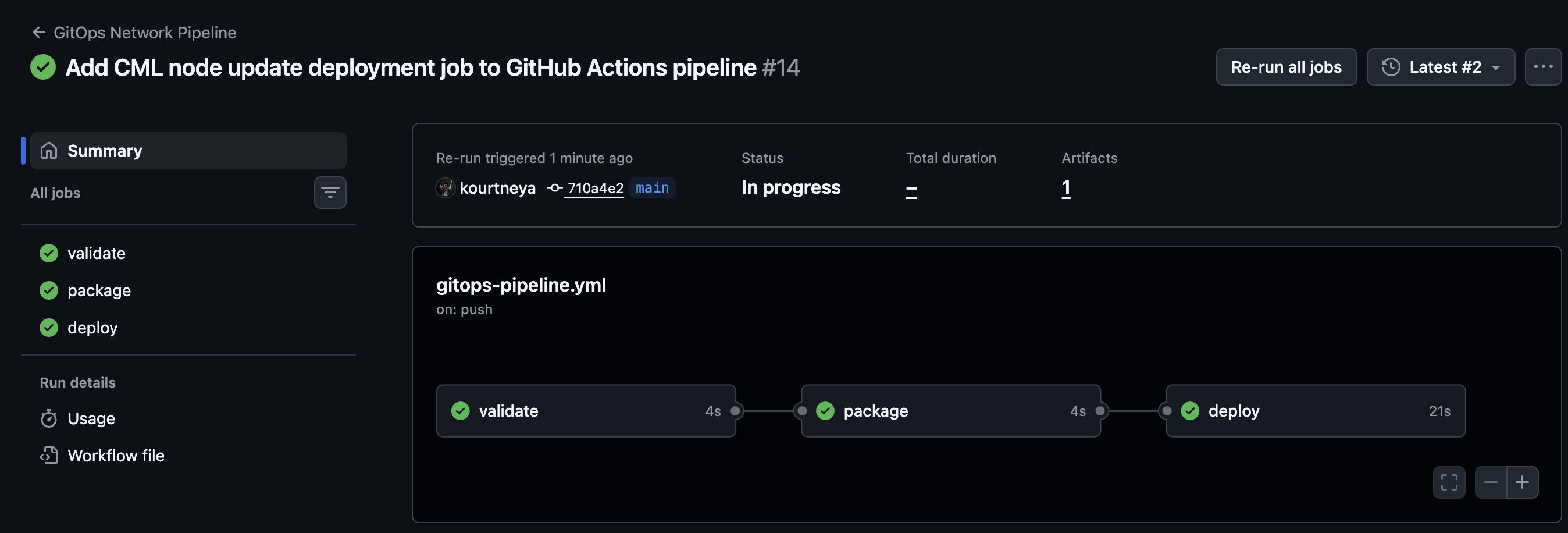
Step 46: Observe the full pipeline stages
After the push, review the workflow run in GitHub Actions and confirm that it moves through these stages:
Click Add CML node update deployment job to GitHub Actions pipeline or the title of last commit message used in the previous 2 steps.
- Validation
- Packaging
- Deploy
Watching the run progress helps connect the YAML definition to the actual execution flow.
Step 47: Review the deploy job
In the workflow run view, click the deploy job in the gitops-pipeline.yml diagram.
Expand the job details and review each step:
- Set up job
- Check out repository
- Download package artifact
- Extract package artifact
- Install jq
- Authenticate to CML
- Normalize CML token
- Get node inventory from the existing lab
- Map router labels to node IDs
- Stop existing CML lab
- Wipe existing CML lab
- Build R1 configuration payload
- Update R1 configuration
- Build R2 configuration payload
- Update R2 configuration
- Build R3 configuration payload
- Update R3 configuration
- Start existing CML lab
- Post Check out repository
- Complete job
Open the logs for each step so you can see the commands GitHub Actions ran and confirm that the deployment job completed successfully.
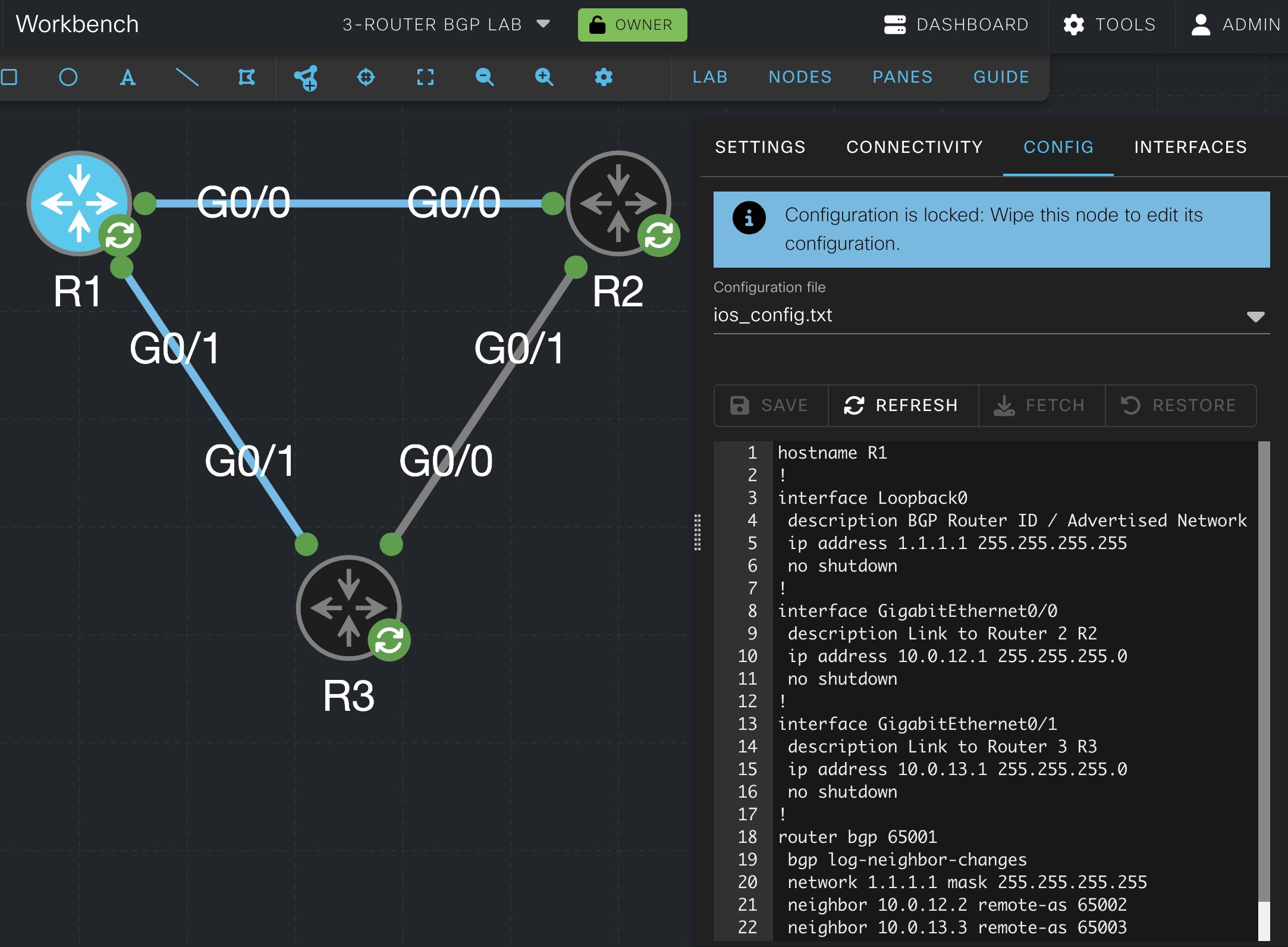
Step 48: Confirm the deployed router configurations
Return to the CML lab canvas and confirm that the workflow updated each router configuration:
- Click the
R1router component. - Click
Config. - Confirm the configuration field matches
configs/router1.cfg. - Repeat the same check for
R2and confirm it matchesconfigs/router2.cfg. - Repeat the same check for
R3and confirm it matchesconfigs/router3.cfg.
This confirms that GitHub Actions successfully deployed the repository configurations into the existing CML lab.
Why This Matters
GitOps becomes much more meaningful when the same repository that stores the intended state can also drive the deployment process. This task closes that loop by taking the router configurations created in the repository, mapping them to existing nodes in CML, and then applying them through documented API calls.
Final Summary
You prepared an existing CML lab for automation and then extended the GitHub Actions workflow with a deployment job that authenticates to CML, finds the existing router nodes, updates their configurations, wipes the lab state, and starts the lab again. At this point, the lab has a complete Git-driven path from repository creation to hosted deployment against an existing CML environment.